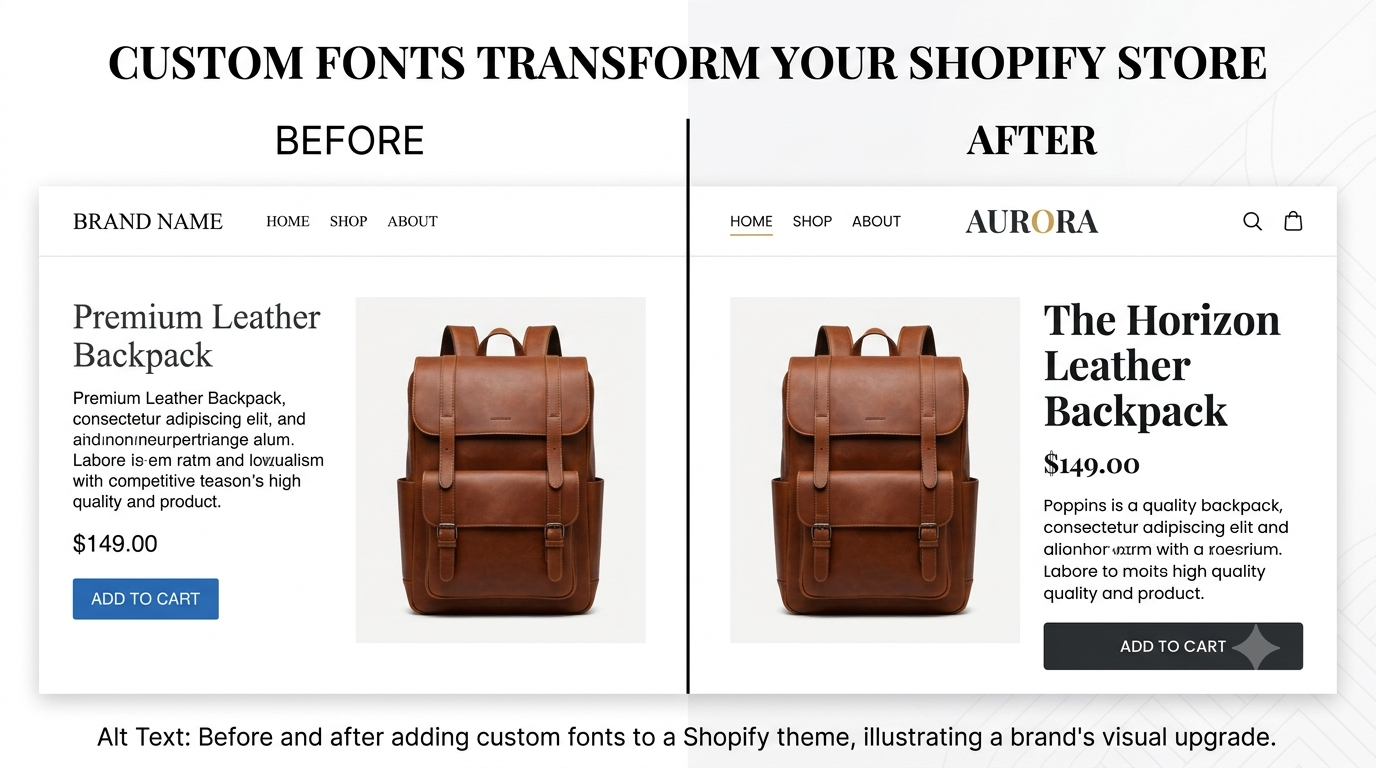
Your products are great. Your photos are sharp. But your website still feels... generic. Chances are, it's the font.
Default theme fonts are the fast food of web design fine in a pinch, forgettable in the long run. If you've ever visited a competitor's store and thought "why does theirs feel so much more premium," custom typography is often the invisible reason why.
In this guide, we'll walk you through exactly how to add custom fonts to your Shopify theme — no coding background required. We'll also cover the mistakes that slow down stores (and cost sales) when fonts aren't added properly.
Why Custom Fonts Matter More Than You Think
Fonts aren't just decoration. They shape how trustworthy, premium, or "on-brand" your store feels in the first three seconds a visitor lands on it.
Consider two identical product pages — same layout, same photos, same price. One uses the default Shopify theme font. The other uses a custom font that matches the brand's logo and packaging. In our experience working with Shopify brands, the second version almost always feels more expensive, even though nothing else changed.
Custom fonts help you:
- Build brand consistency across your website, packaging, and ads
- Stand out from other stores using the same default theme
- Improve readability and guide attention to key elements (like your "Add to Cart" button)
Two Ways to Add Custom Fonts to Shopify
There are two main paths: using an app or adding the font directly through code. Here's how they compare.
| Method | Best For | Speed Impact | Control | Cost |
|---|---|---|---|---|
| Font App | Beginners, quick changes | Can slow site if not optimized | Limited | Monthly fee |
| Custom Code | Long-term brand control | Minimal (if done right) | Full control | One-time setup |
Apps are tempting because they're fast to install. But many font apps load extra scripts that slow down your store — and page speed directly affects both SEO and conversion rates. If speed is a top concern for you, our other Heaven Tech guide on Shopify site speed optimization breaks down exactly what slows stores down and how to fix it.
For most brands serious about their image, adding fonts via code is the better long-term move — and it's not as scary as it sounds.
How to Add Custom Fonts to Your Shopify Theme (Step-by-Step)
Step 1: Choose Your Font Source
You have two options:
- Shopify's built-in font picker — works only for fonts already in Shopify's library (via Theme Settings → Typography)
- Custom/external fonts — for fonts from Google Fonts, Adobe Fonts, or a font you purchased/licensed for your brand
If your brand has custom fonts from a designer, you'll need to upload the actual font files (usually .woff2 format — the fastest-loading font format).
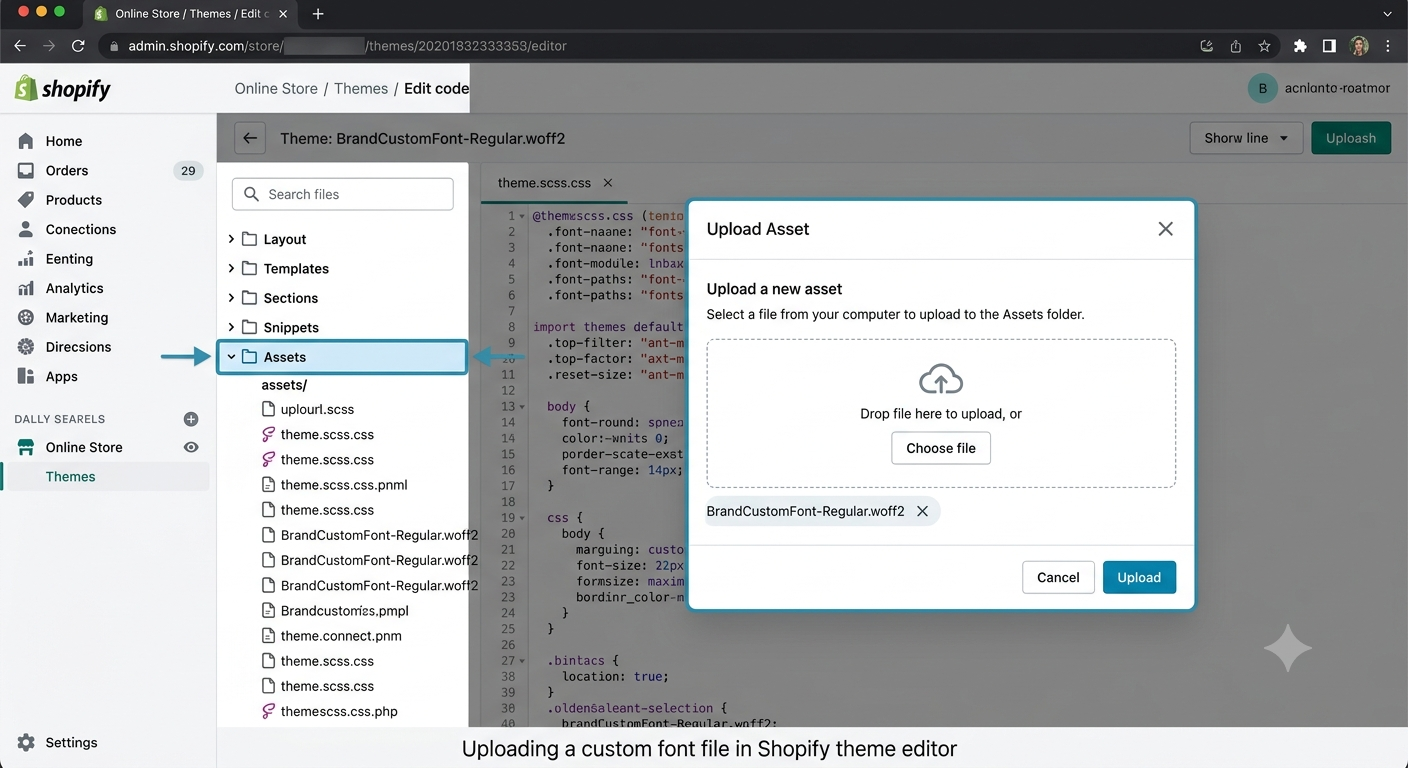
Step 2: Upload the Font Files
- From your Shopify admin, go to Online Store → Themes
- Click Edit Code next to your active theme
- Look for the Assets folder
- Upload your
.woff2font files here
Step 3: Register the Font in Your Theme's CSS
This is the step most tutorials skip — and it's the one that determines whether your font actually loads fast or drags your site down.
In your theme's CSS file (often theme.css or base.css), add:
@font-face {
  font-family: 'YourBrandFont';
  src: url('YourBrandFont.woff2') format('woff2');
  font-weight: normal;
  font-style: normal;
  font-display: swap;
}

body, h1, h2, h3, p {
  font-family: 'YourBrandFont', sans-serif;
}
A quick note on font-display: swap — this one line prevents visitors from staring at a blank screen while your font loads. It shows a fallback font instantly, then swaps in your custom font. Small detail, big impact on perceived speed.
Step 4: Apply the Font to Specific Elements (Optional)
Want your font on headings only, and a different one for body text? Target them individually:
h1, h2, h3 {
  font-family: 'YourHeadingFont', serif;
}

p, span {
  font-family: 'YourBodyFont', sans-serif;
}
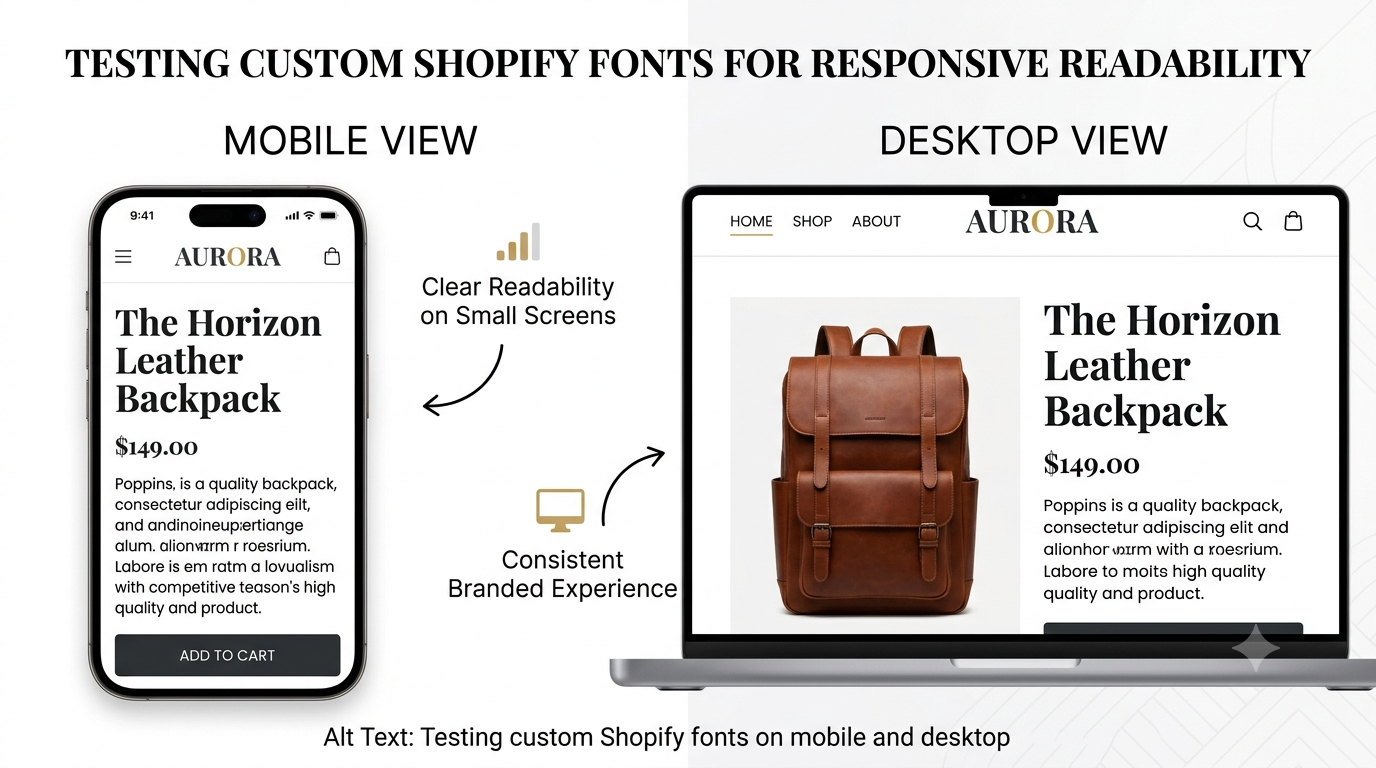
Step 5: Preview and Test Across Devices
Before publishing, check your font on:
- Mobile (this is where most of your traffic likely comes from)
- Different browsers (Chrome, Safari)
- Slow connections (to confirm loading speed hasn't suffered)
Common Mistakes Store Owners Make With Custom Fonts
- Uploading TTF or OTF instead of WOFF2 — these are larger files that slow load times
- Forgetting
font-display: swap— causes an awkward "flash" or blank text on load - Using too many font weights — every extra weight (bold, light, italic) is a separate file to load
- Not testing on mobile — a beautiful desktop font can look tiny or cramped on phones
A store we optimized recently had five different font files loading on every single page — most of them unused leftovers from a previous theme. Removing them cut load time noticeably and didn't change how the site looked at all. Cleanup like this is often just as valuable as the font upgrade itself.
Final Thoughts
Custom fonts are a small change with an outsized impact on how premium and trustworthy your store feels. Done right with the correct file format, proper CSS setup, and a bit of cleanup — they cost you almost nothing in speed while making your brand instantly more recognizable.
If you're not confident touching your theme's code (or just don't have the time), that's exactly the kind of thing we handle every day at Heaven Tech Solutions.
Want us to take a look at your store for free? We offer a free Shopify store audit. We'll check your fonts, speed, and overall setup, and show you exactly what's holding your store back from more sales. No pressure, just useful insights.
Comments (0)
Leave a comment